
Amazon S3
A bucket in, a bucket out, or both
Two one-way integrations you compose. S3 Export publishes every language in your project to a bucket in one push, formatted by your project settings and ready to sit behind a CDN. S3 Import pulls translation files from a bucket back into the project, whether that is a tidy locale folder or files another pipeline drops wherever it pleases.
A push is a full publish: the same objects, overwritten in place, safe to run twice. Nothing is ever deleted from your bucket.
acme-web-locales eu-central-1
acme-web-locales / locale/
One object per language, overwritten in place on every push.
How it works
Files in a bucket, not files in an inbox
Export names each file by your structure pattern, {LANG_ISO}.{FORMAT}
for one object per language or a per-language folder layout, under the prefix you
chose. Formatting comes from the project’s settings (indentation, key order,
nesting, plural style), so two pushes of the same translations produce byte-identical
objects: CDNs cache them cleanly and diff tools stay quiet.
Import reads the bucket the same way, or switches to a glob pattern like
**/*.json when the files were scattered by a build pipeline rather than
arranged for translation. It adds new keys and fills empty values, and touches
nothing else unless you switch on update existing.
The publish
Every language, one push, objects overwritten in place. Idempotent by design: rerunning it cannot make a mess, only make the bucket current.
The intake
Structure mode for locale folders, glob mode for everything else. Every run reports what it added, updated and skipped, and a limit check runs before anything is written.
Deliberately split
Import and export are separate integrations: different buckets, different credentials, different lifecycles. Run one, the other, or both at once.
Setup
A bucket, one IAM user, and a test button
About five minutes per direction. You will need a project role in locamorph that can manage integrations, and enough AWS access to create an IAM user and attach a policy.
-
Choose S3 Import or S3 Export on the Integrations page
Each direction is its own card and its own configuration. This is also where the integration lives later: status, settings and revoke all stay on this one screen.
-
Create an IAM user scoped to the bucket
In AWS, create an IAM user for exactly this purpose, attach a least-privilege policy like the one below, and mint an access key for it. No root keys, no account-wide access: list, read and write on one named bucket and nothing else.
iam-policy.json { "Version": "2012-10-17", "Statement": [{ "Effect": "Allow", "Action": [ "s3:ListBucket", "s3:GetObject", "s3:PutObject" ], "Resource": [ "arn:aws:s3:::YOUR_BUCKET", "arn:aws:s3:::YOUR_BUCKET/*" ] }] }Replace
YOUR_BUCKETwith your bucket name. An import-only user can drops3:PutObjecttoo. And if the connection test later finds a permission missing, the modal shows this same policy with your bucket name already filled in, next to the exact steps to attach it. -
Enter bucket, region and keys, then press Test Connection
Fifteen AWS regions are supported, from
us-east-1toap-south-1. The test calls the bucket and tells you exactly what is wrong when something is: an invalid key, a wrong secret, a missings3:ListBucketpermission, a bucket that lives in another region. Test first; a typo dies here instead of in your first sync.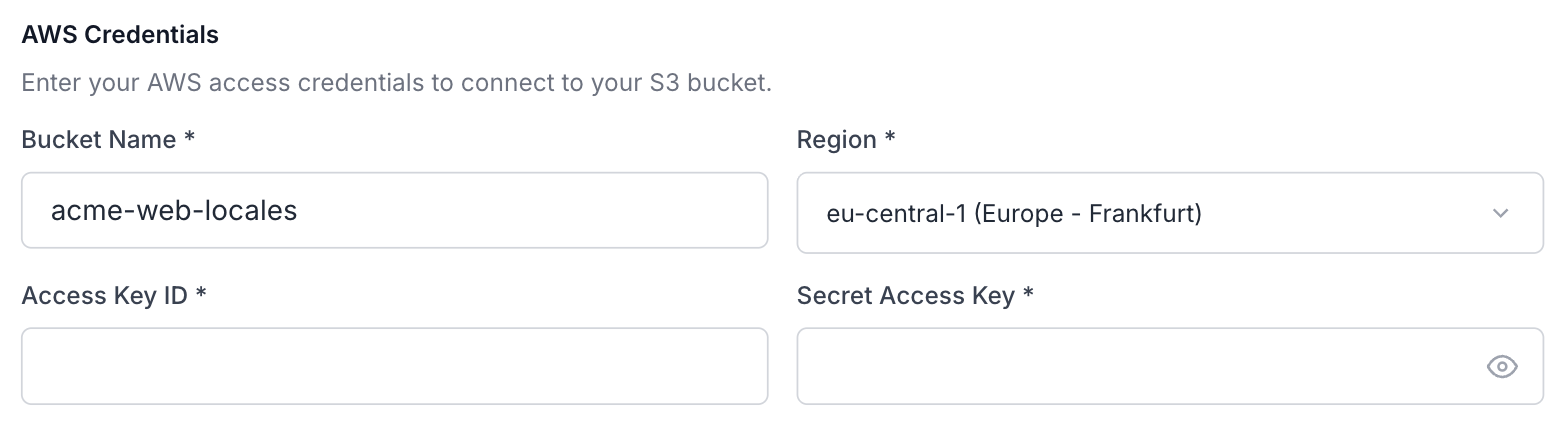
Bucket, region and credentials in one place, with a test that names the exact problem. -
Point it at your files
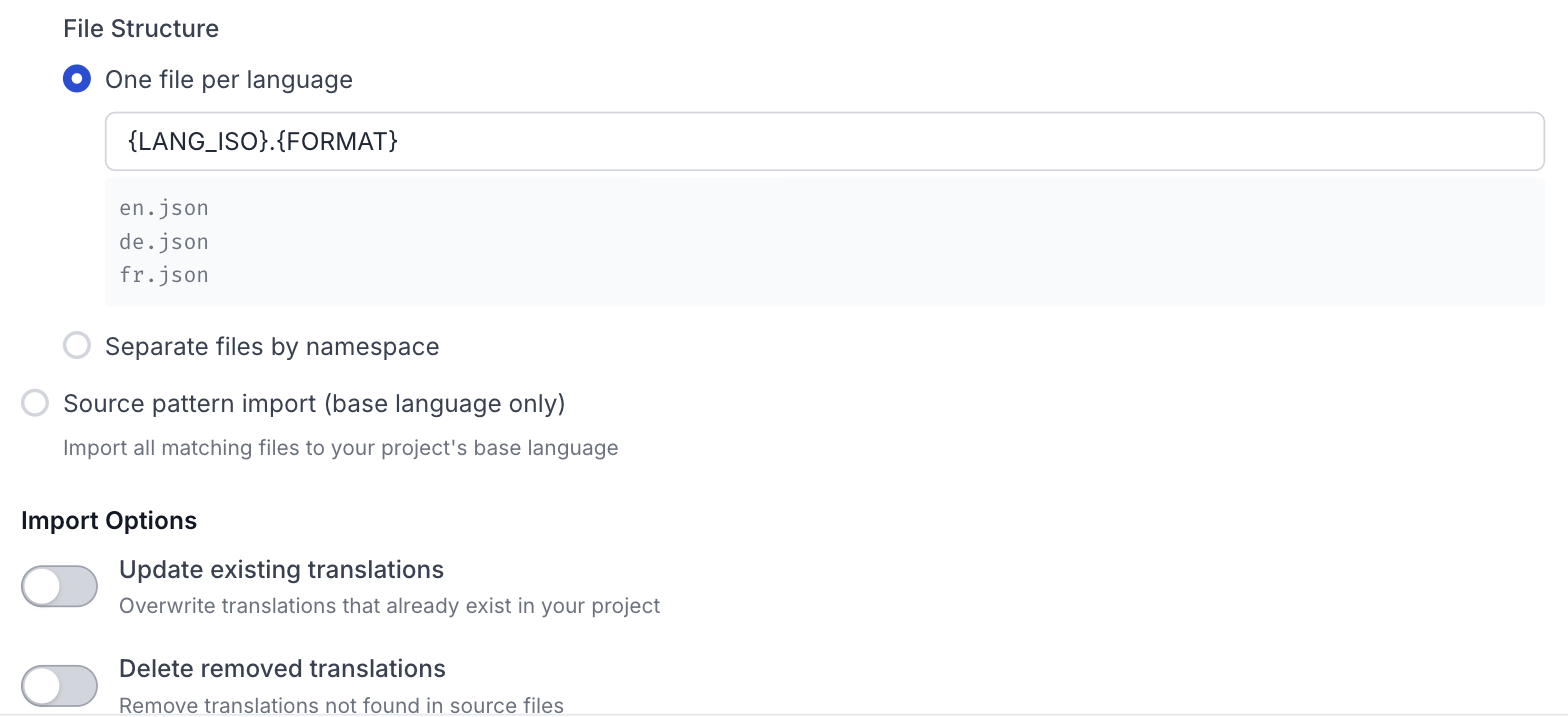
An optional path prefix, the file format, and how files are named. For import, also the mode: translation files matched by structure, or a glob across whatever the bucket holds, plus the update existing and delete removed switches, both off by default so a first run cannot overwrite or remove a translator’s work.
-
Save, then push or pull once
The project’s Synchronisation panel gets a Push button for the export integration and a Pull button for the import one. Run it once and check the result counts; an empty run is a pass too, it means bucket and project already agree.
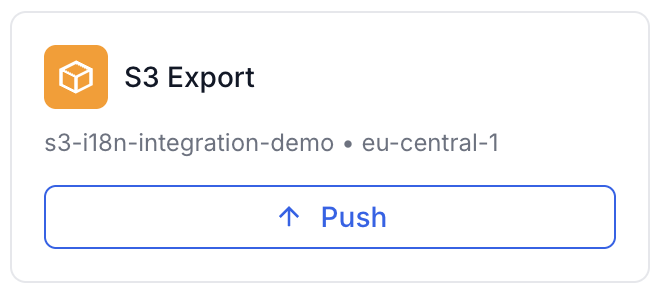
Day-to-day home of the integration once it is connected.
Security
One bucket, one user, one policy
The credential is an IAM access key you mint for exactly this purpose, and the modal hands you the policy to mint it with: list, read and write on a single named bucket, nothing else. locamorph never sees your AWS account beyond that bucket, cannot reach another one, and cannot touch anything that is not S3.
The connection is proven before you rely on it. The test does not just fail, it diagnoses: wrong access key, wrong secret, valid credentials with a missing permission, or a bucket that lives in a different region each produce their own message, so you fix the actual problem instead of guessing. After setup the keys stay server-side; editing the integration later means entering a new secret, never reading the old one back.
Revocation belongs to you, in AWS. Deactivate the access key in IAM and the integration stops that instant, no cleanup on our side required. Since import and export are separate integrations, they can carry separate keys: a read-scoped user for the intake bucket, a write-scoped one for the publish bucket, each revocable on its own.
Common workflows
Three shapes teams settle into
For import, the mode switch decides how the bucket is read: files arranged for translation, or files as a pipeline left them.
The CDN origin
Export only. The bucket sits behind CloudFront or any CDN, your apps fetch translations at runtime, and a push before each release makes the new strings live. Byte-stable output means caches invalidate only when content actually changed.
The pipeline intake
Import only, usually in glob mode. Upstream systems drop files into a bucket on their own schedule: a legacy exporter, a data pipeline, another team’s tooling. Pull picks up whatever landed, adds the new keys, and leaves existing translations alone.
The split loop
Both directions, different buckets. Sources arrive in a staging bucket from wherever they are produced; finished translations publish to a production bucket the apps read. Separate credentials mean the intake user cannot write where the apps read, and the publish user cannot see the staging data.
Related
Where to go next
GitHub
Two-way repo sync through a GitHub App, with translations arriving as pull requests.
CLI
Sync from a terminal or any script, with dry runs that show the change set first.
All integrations
GitHub, GitLab, Slack, S3, webhooks, the CLI and the REST API.
Don’t see your tool?
Tell us what you’d want connected.
Import or export?
They are separate integrations on purpose. Pick the direction your files flow, or run both.
S3 Import
For buckets other systems write into. Pull reads what landed and folds it into the project on your terms.
- Structure mode for locale folder layouts
- Glob mode for files a pipeline scattered
- Add-only unless you flip update existing
S3 Export
For buckets your apps and CDN read from. Push publishes the whole project in one idempotent write.
- Every language published in one push
- Overwritten in place, safe to rerun
- Your prefix, your file structure, your format
Each direction is its own integration with its own bucket and credentials, and each uses one integration slot on your plan.
Point it at a bucket
Free plan, one IAM user, and a connection test that names the exact problem before anything is saved. If it is not what you hoped, deactivating the key in AWS ends it as cleanly as it began.