
GitLab
Merge request or straight to the branch: your call
Connect a GitLab project with a URL and one project access token, and translations move both ways: new strings pull in from your repo, finished translations push back as a merge request your team reviews, or as a direct commit when review would just be ceremony. One radio button in the config decides, and you can change your mind any time.
Every push compares against the repo first. If nothing changed, nothing is committed, so an idle project never grows noise commits or empty merge requests.
locamorph / web-app / Merge requests / !1
chore: update translations
Automated translation sync · 4 files updated · Languages: fr, de, tr, es
3 more files changed · locale/de.json, locale/es.json, locale/tr.json
How it works
Two paths out, one path in
In merge request mode, a push writes your translation files to a
translations/{timestamp} branch and opens a merge request
titled chore: update translations. The branch, the title and the labels
all follow your own patterns, with variables like
{date}, {files_count} and
{languages} filled in per push. In direct mode, the same
push commits straight to the tracked branch and skips the merge request entirely.
Files are formatted by the project’s settings (indentation, key order, nesting, plural style), not by whoever exported last. The same keys always serialize to the same bytes, which keeps a translation diff down to the strings that actually changed. The same holds for every supported file format.
A merge request, labelled your way
CI and approvals run like on any other MR, and the labels you configure route it into your boards and workflows before anything merges.
A direct commit, no ceremony
Translations land on the branch the moment you push them. Made for repos where translation changes do not need a human gate.
Only real changes ship
Push fetches the current files and diffs first. Unchanged files are skipped, and a push with nothing to say reports “no changes” instead of committing one.
Setup
A URL, a token, and a test button
About five minutes. You will need a project role in locamorph that can manage integrations, and enough access on the GitLab side to create a project access token.
-
Connect GitLab from the Integrations page
Open your project’s Integrations page and choose GitLab. This is also where the integration lives later: status, configuration and revoke all stay on this one screen.
-
Create a project access token in GitLab
In your GitLab project, go to Settings → Access tokens and add a new token. Name it something you will recognize in a year, such as
locamorph-sync, give it a role that can read and write the repository, and pick the expiry your policy demands. Grant these scopes:apiread_repositorywrite_repositoryself_rotateGitLab shows the token value once, right after creation. Copy it then. A project access token belongs to the project rather than to your user account, which is exactly why it is the right kind here: it carries none of your other projects and survives you changing teams.
-
Paste both into locamorph and press Test Connection
The project URL, like
https://gitlab.com/locamorph/web-app, plus the token. The test calls GitLab with exactly what you entered and reports what it found. A new configuration cannot be saved until the test has passed, so a typo dies here instead of in your first sync.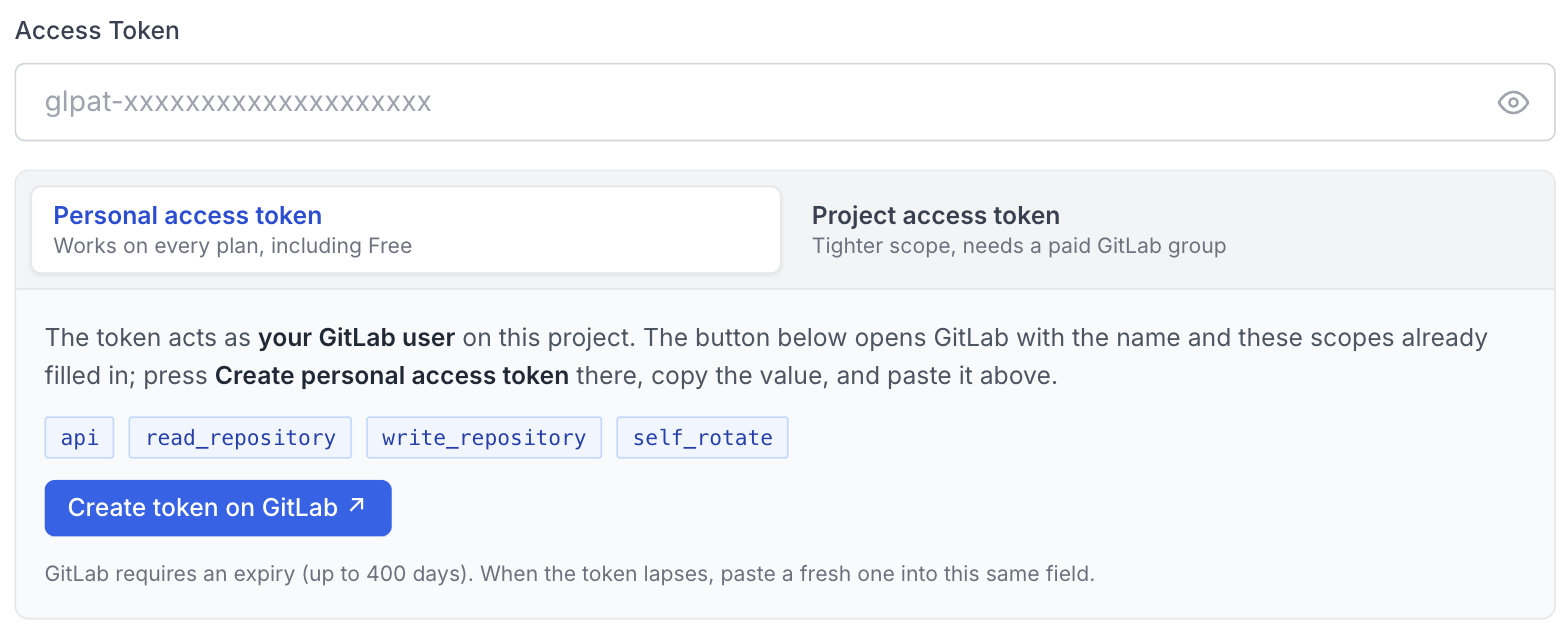
The connect form walks you to the right token, and its button opens GitLab’s form prefilled. Nothing saves until the connection test passes. -
Point it at your files and pick the direction
The branch to track (your default branch is preselected), the sync path, file format, and how files are named. Then the direction: import only, export only, or both. Import is add-only unless you switch on update existing, so a first run cannot overwrite a translator’s work.
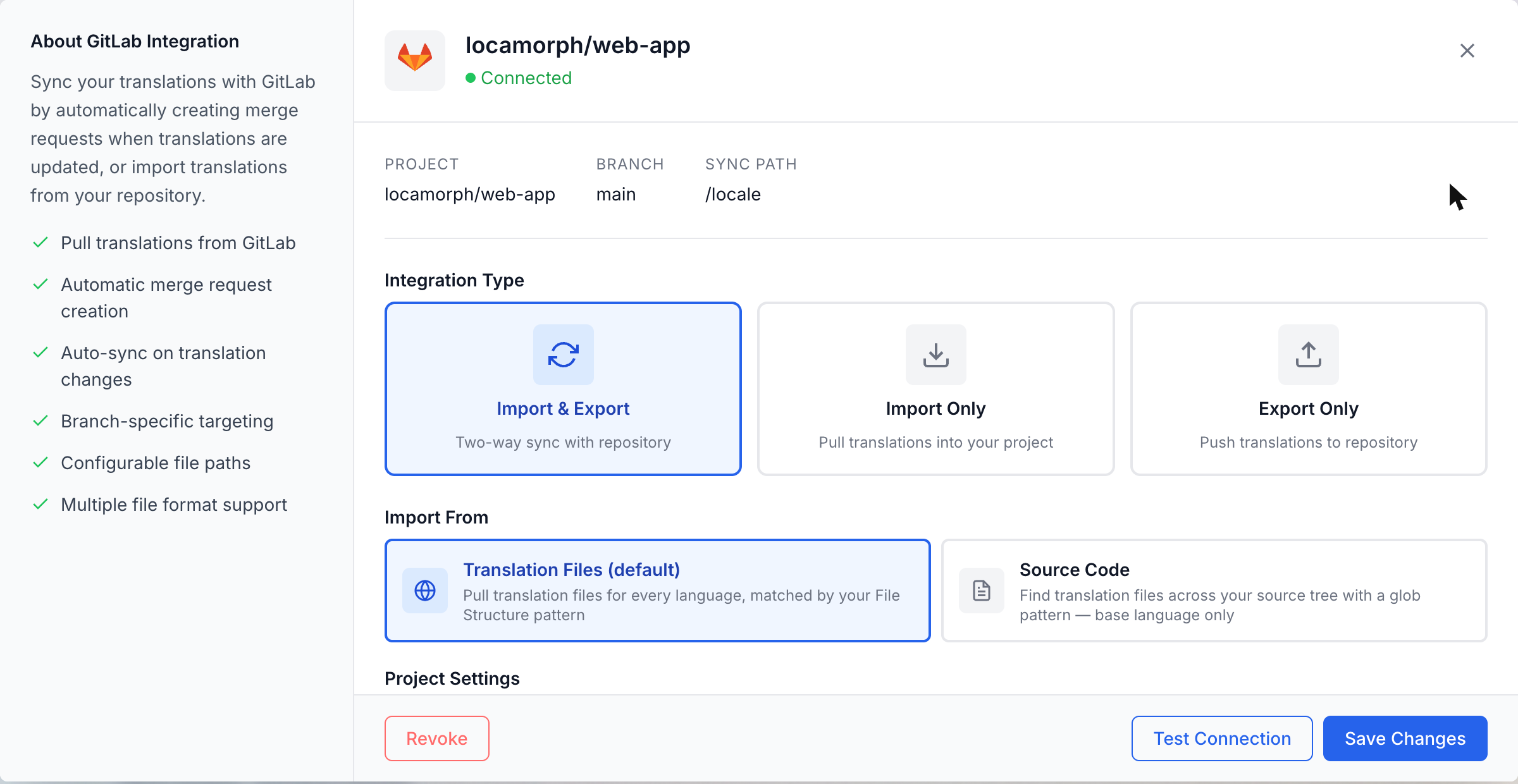
Branch, path, format and direction live in the same modal as the connection. -
Save, then push or pull once
The project’s Synchronisation panel gets Push and Pull buttons for GitLab. Run one Pull to confirm the path and format are right, or one Push to see the first merge request arrive. “No changes to push” is a pass too: it means the repo already matches the project.
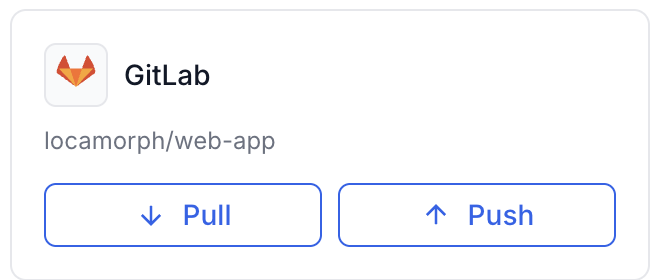
Day-to-day home of the integration once it is connected.
Security
A token you scope, and can kill
The credential here is a project access token, and that word “project” is doing real work. It belongs to one GitLab project rather than to a person: it cannot see your other repositories, your groups or anything else your own account can, and it keeps working when the person who created it changes teams or leaves. Connecting a second GitLab project means a second token with the same one-project reach, never a wider one.
You create it with an explicit scope list and an expiry you choose, and you can revoke it on GitLab at any moment: the connection dies with it, instantly. locamorph proves the token works before saving it, keeps it server-side, and never sends it back to the browser afterwards. Even the built-in Test Connection on an existing setup runs against the stored copy rather than round-tripping the secret.
If your team standard is to avoid personal access tokens, this integration already agrees: a personal token acts as you, everywhere you exist on GitLab, and is exactly the kind of credential that leaks more than it needs to. The setup above never asks for one.
Common workflows
Three shapes teams settle into
The direction and the sync mode are two switches in the config modal, changeable at any time without reconnecting or touching the token.

Review-first releases
Merge request mode, both directions on. Translators finish their work in the app, someone presses Push before the release, and the MR arrives labelled for your board with CI and approvals running as usual. Translation ships with the same discipline as code.
Straight to the branch
Direct mode, for repos where a translation change needs no gate: content sites, documentation, internal tools. Pushes land as clean commits, and the change-detection pass keeps the history free of empty ones.
Import-only feeding
Direction set to import, optionally with a glob pattern like
src/**/*.{json,yaml} instead of a locale folder. The
repo stays the source of truth for keys, locamorph stays the workbench, and
delivery happens elsewhere: through the CLI in a
build step, or CI of your own.
Related
Where to go next
GitHub
The same two-way sync for GitHub repos, connected through a GitHub App instead of a token.
CLI
Sync from a terminal or any script, with dry runs that show the change set first.
All integrations
GitHub, GitLab, Slack, S3, webhooks, the CLI and the REST API.
Don’t see your tool?
Tell us what you’d want connected.
Merge request or direct commit?
Both are the same push. The difference is what stands between locamorph and your branch.
Merge request
Every push opens a fresh MR from a translations/{timestamp}
branch, titled and labelled by your patterns. Your team decides when it lands.
- CI and approval rules run before anything merges
- Labels route it into boards and workflows
- Fits protected branches and release discipline
Direct commit
The same push writes straight to the tracked branch. No branch, no MR, no waiting on a reviewer for strings nobody needs to argue about.
- Translations land the moment you push
- Change detection still skips untouched files
- One radio button back to MR mode any time
Switching modes changes nothing else: same token, same branch, same files. Pick per repo, not once forever.
Connect a GitLab project
Free plan, one token, and a Test Connection button that proves the setup before anything is saved. If it is not what you hoped, revoking the token on GitLab ends it as cleanly as it began.